
Communal offers various configurations for programs and events to ensure they match your organizational needs. In this article, you'll learn how to build a program/event.
Follow the steps below to create a program or event
- Select the Program or Events tab on the left-hand side of the admin portal.
- Click Create new Program.
- Select if you would like to build a Program or Event.
-
Event: This option is designed for ticket-based opportunities. As people register, they will have the opportunity to add multiple tickets to their cart for faster registration:
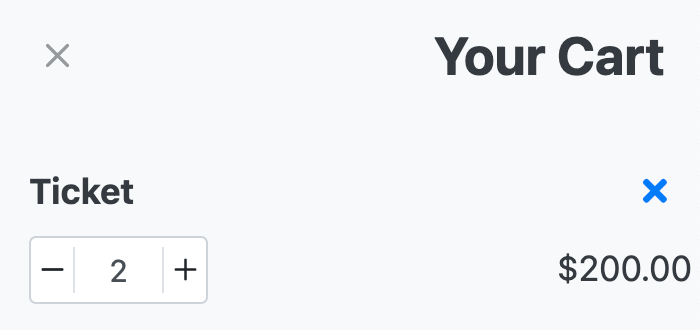
- Program: This option is better for activities such as sports registrations and requires registration information for each participant.
-
- Enter the Title and Description, then optionally add the instructor or host name, Demographic information, and any additional registration fee for the program/event.
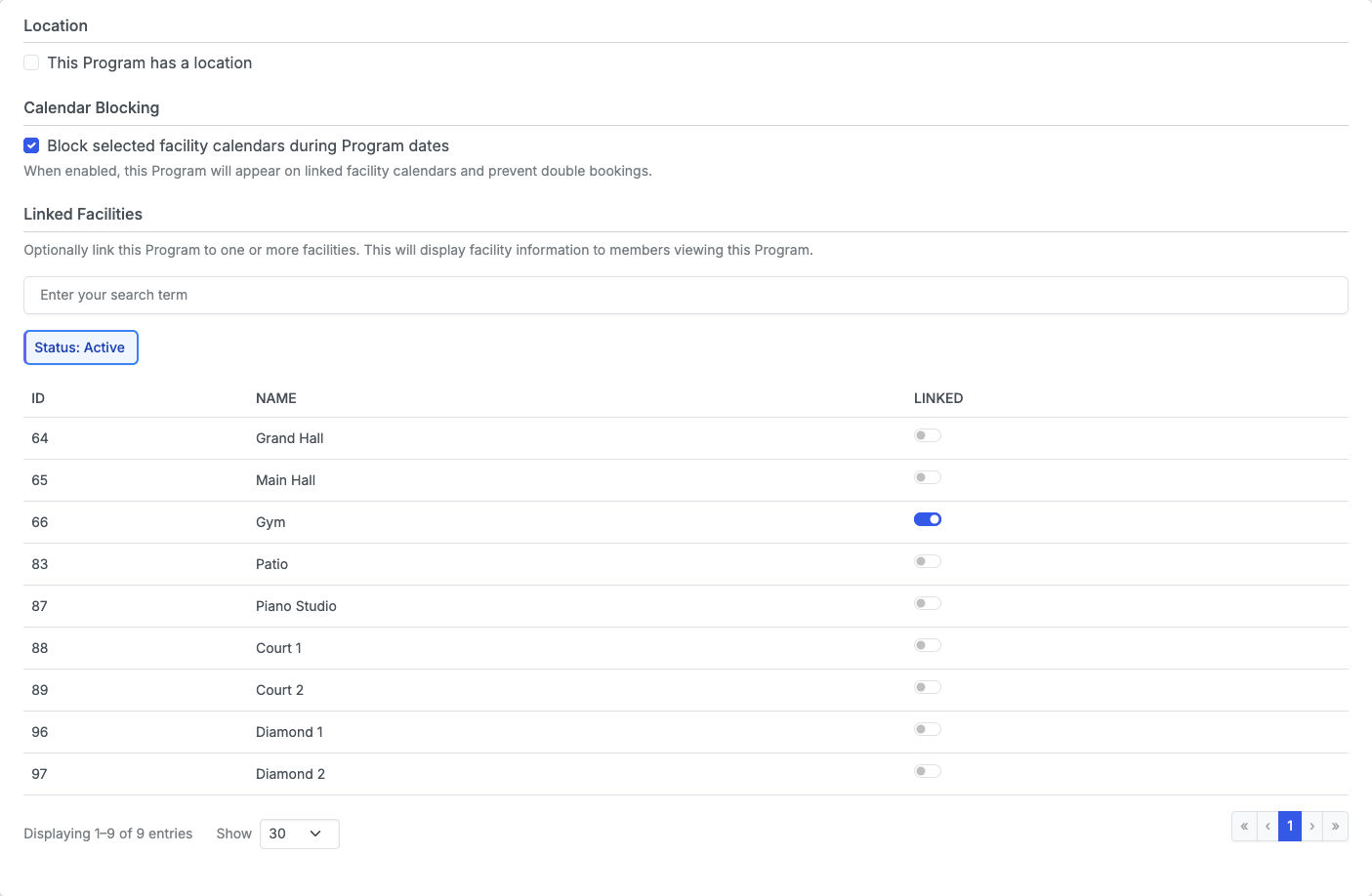
- Then if the program/event has a location add it in. If you use the facilities module you can select which facility(s) the program will be in and block off time in the calendar.
- Select the image for your program/event. You can either upload an image or use our stock photo integration to pick an image.
- Then, you have the option to allow for File Uploads from registrants. Indicate if a file is mandatory and the maximum number of files someone can upload.
-
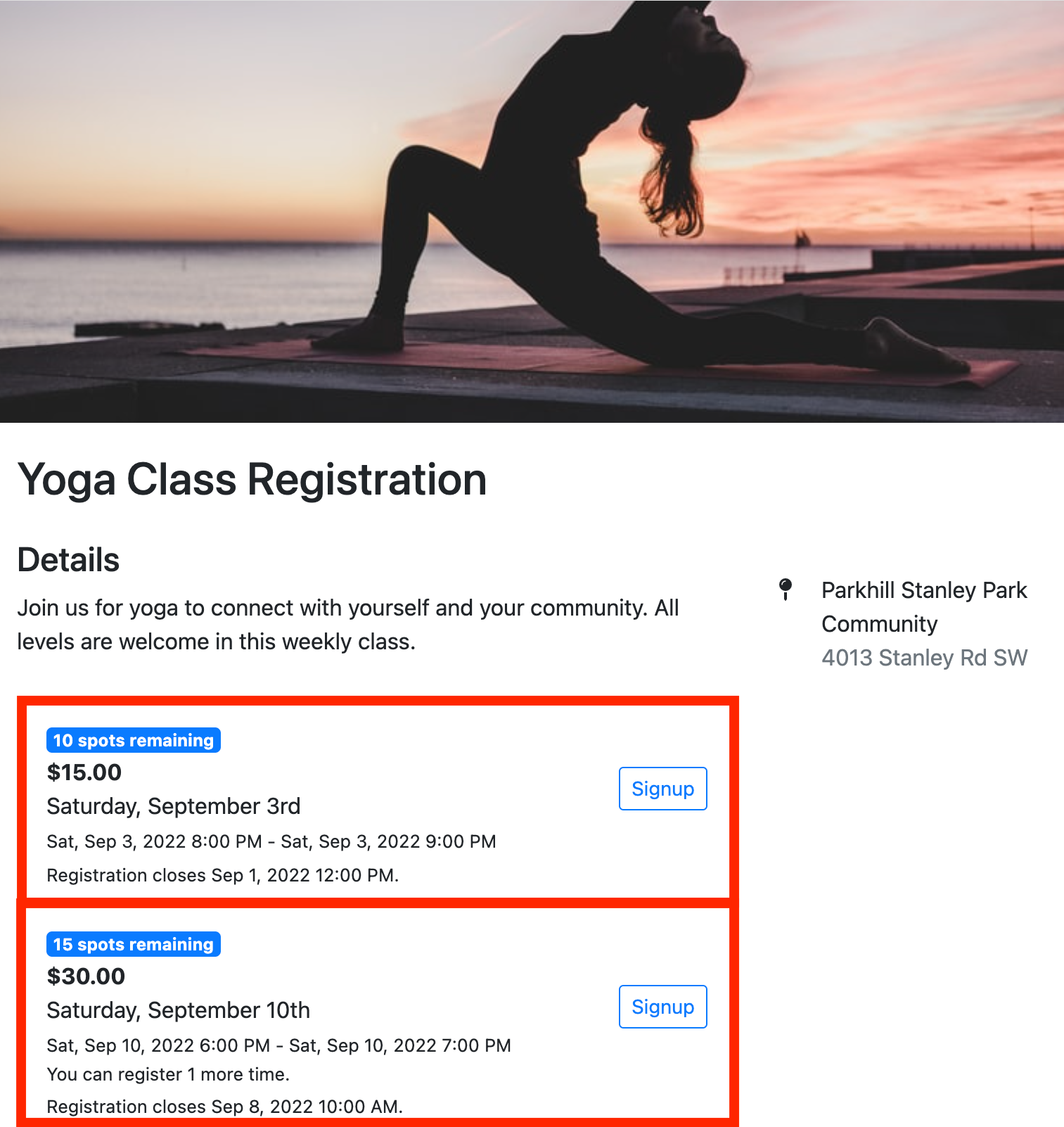
Use the Registration Opportunity section to build all of the occurrences of this program/event and configure the dates. This section allows you to build different things such as class dates and ticket types. An example of a yoga program with two Registration Opportunities is shown below:
- Select + Create Registration Opportunity.
- Enter the Title, Signup limit for that registration opportunity. You can set a signup limit per-registration opportunity or set a shared total capacity for all programs on the main Registration Settings page. If you would like to set a shared total capacity do not set a signup limit for the single registration opportunity.
- Next, select the Schedule Type: Single Date, Multiple Dates, Recurring, or Ongoing. Set your registration start/end date and time and event date(s) or recurring schedule.
- Next, the pricing section allows you to configure the various price points for your program/event.
-
Member Pricing: If you offer a special rate for your membership base, enter the price under that membership. Ensure the Guest Fee is a different price. Your guests will be encouraged to buy a membership if there is a discount for members.
- Multiple Membership Pricing: If you have multiple memberships such as a Racquet Membership & Base Membership you'll have a few more options. Enter the same rate for the memberships if the program price is the same for both, or make one different if you get an added benefit with the additional membership.
- Free Programs & Events: You can set if a program is free down to the membership level. Simply click the Free option from the drop down next to each membership type. If the program is free for everyone, click the button for all of the options.
- Member-only Programs: This option is for programs where you wish to display it to the general public but force them to hold a membership to complete the registration. If guest are not able to register simply leave them set to PAID but price is $0. Follow these steps for more information on how to create a member-only program.
-
Member Pricing: If you offer a special rate for your membership base, enter the price under that membership. Ensure the Guest Fee is a different price. Your guests will be encouraged to buy a membership if there is a discount for members.
- Next, if a waiver is required to register for the program/event, you can configure it in the Waiver section. You'll first need to upload the waiver under Tools > Waivers before you can select it on the program. To learn more about waivers, click here.
-
Next, you can associate a volunteer opportunity with your program/event. This will highlight the shifts from the associated volunteer opportunity to the individual as they register for the program/event.
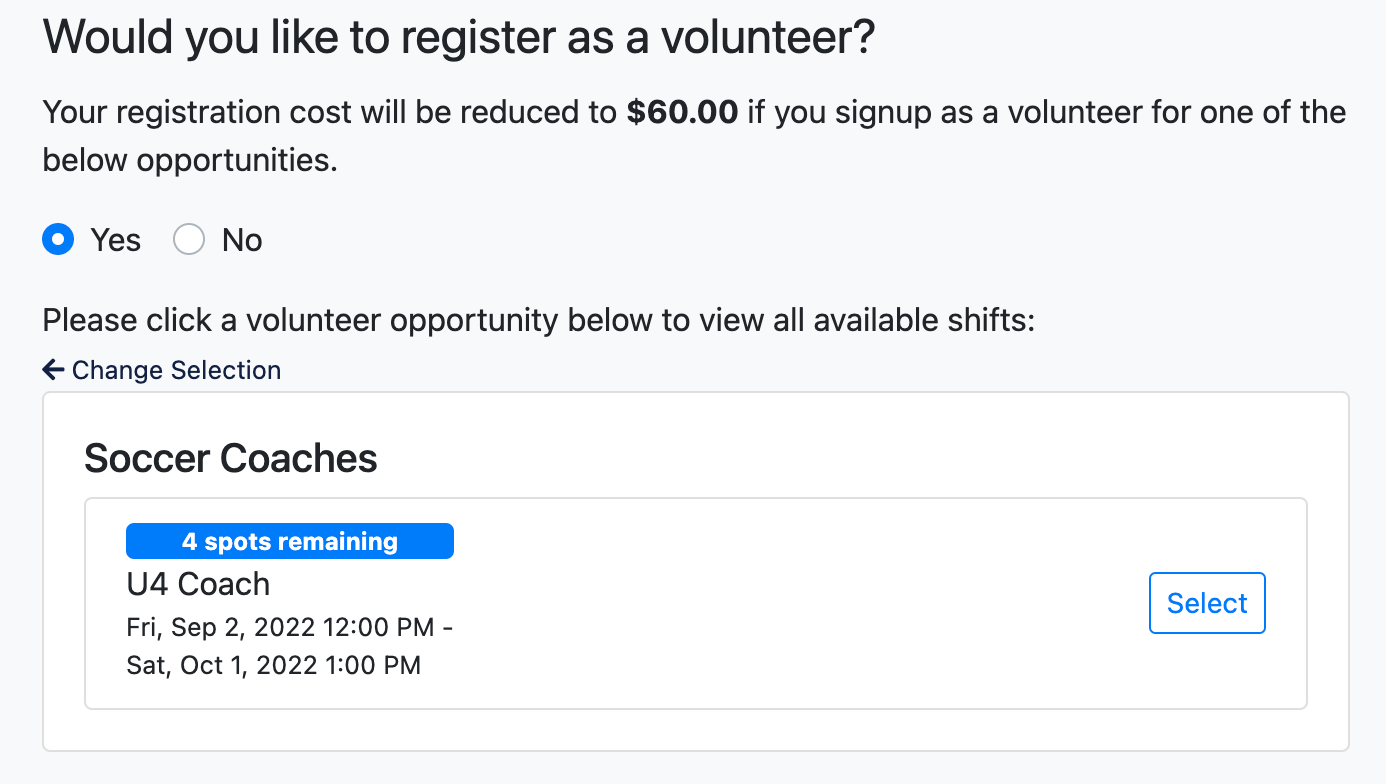
If a volunteer opportunity is associated with a program/event, you can offer different prices to those that choose to volunteer. Ensure you publish the volunteer opportunity before you publish the event. - Leverage the Settings area to enable a waitlist or date of birth validation. The date of birth validation will ask the user to enter the date of birth (DOB) of the participant. They can only complete the registration if the DOB aligns with the ages entered in this section.
-
Click Save to add the Registration Opportunity.
Registration Opportunities are clonable to allow for faster creation of similar opportunities as seen below: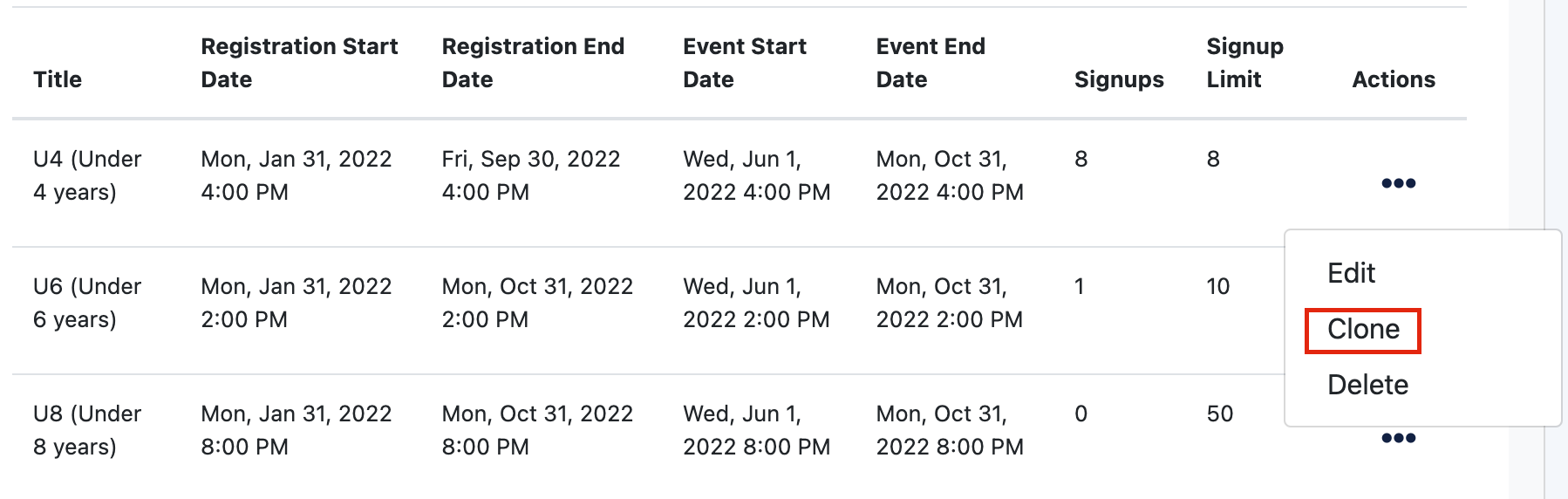
- Lastly, the Settings section allows you to configure the program/event to your specific needs. Learn more about each setting here.