
Our Bookings module is designed to help you manage an online calendar for your rentable spaces. Learning how to add bookings manually will be key to ensuring the availability of your entities is accurate.
How to add a manual booking to the calendar:
- Select the Facilities tab then Calendar on the left-hand side of the admin portal.
-
Use the tabbed calendars to select the entity associated with the booking. An example is shown below on how to select the Main Hall:
- To create the booking, select the time by clicking your mouse at the starting time and dragging it until the end time.
-
Pick one of the three booking options that are displayed:
To learn more about the three options, click here and review the Types of Bookings section -
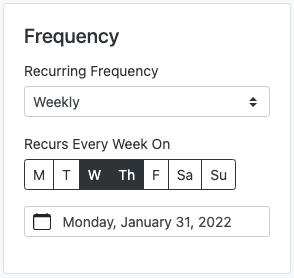
For recurring bookings, leverage the Frequency section to create the associated bookings. You'll need to define the other recurring days as well as the end date for the series as shown below:
- Lastly, if you are using the Booking type, you have the option of associating items to the request. Learn more about Items here.
Helpful Information
Calendar Display Text
When a booking appears on the calendar, its title is determined by the following hierarchy:
1. Calendar Display Text — If you set this on a booking, that text is shown as the calendar title.
2. Reason — If Calendar Display Text is not set but the booking has a reason, the reason becomes the public calendar title.
3. Default — If neither is set, the title falls back to information such as the member's name or the bookable entity name.
What this means for privacy: If a member or staff user enters a reason when creating a booking and Calendar Display Text is not filled in, their reason will appear on the calendar for anyone who can view it. This applies to all booking types — not just Block Off Time.
To control what's shown, set a Calendar Display Text value on the booking at creation. This overrides the reason and gives you full control over the calendar label. If you want to collect a reason for internal use without exposing it on the calendar, always include a Calendar Display Text value.